Loop any part of a YouTube video
A free YouTube looper: drag the handles to choose the part you want, slow it down, or share the loop. No ads, no account, nothing to install.
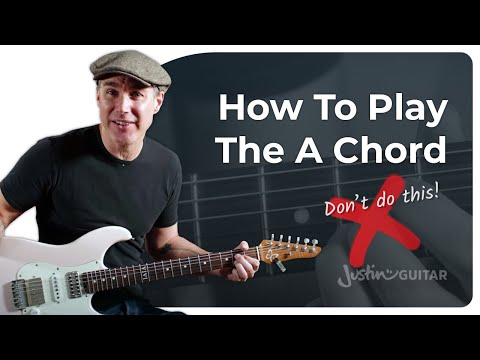
An example: the finger position for an A chord, on repeat. Paste your own link above, or press Start loop anywhere in this one.
Start1:54.0
--loop length · example, muted
End--
Share this loop
The start, end, speed and note are saved in the link. No account needed.
Sign in with Google to keep it, on every device you use.
Speed
Keyboard shortcuts
L starts and ends the loop, Space plays and pauses, R replays, S is slow-mo (hold S to creep at the slowest speed), N opens the note. I and O set the start and end on their own, [ and ] change the speed by 0.05, M mirrors, Z shows the full timeline or zooms back, and the arrows move a second (Shift for a tenth). A page-turner pedal works too: Page Down plays and pauses, Page Up replays.
Skip marks
StudioBuild from this loop
Turn this moment into something bigger.
How to loop part of a video
- 1
Paste a video
Drop in a YouTube link. No account needed.
- 2
Pick your moment
Set where the loop starts and ends.
- 3
Make it yours
Loop it, slow it down, add a note, and share.
What can you loop?
- A riff, a lick, a fill. Loop four bars at 0.7x until your hands have it, then bring the speed back up a step at a time. Loop a passage for music practice
- Eight counts of choreography. Mirror the picture so their left is your left, and repeat the eight counts you keep losing. Mirror and loop for dance practice
- One sentence in another language. Hear it again and again at 0.85x, say it back, then move on to the next. Loop a sentence for language learning
- One play, one swing, one step of a tutorial. Watch the same three seconds until you see what full speed hid. Break down a play for sports analysis
Questions
What is a YouTube looper?
A YouTube looper repeats a video, or just one section of it, on its own until you stop it. This one is free and runs in the browser: paste a YouTube link, set where the section starts and ends, and it plays that part over and over, at any speed from 0.25x to 2x. No account, no extension, and the video keeps playing in YouTube's own player.
Can YouTube loop just one section of a video?
Not by itself. YouTube's own Loop, in the player's right-click menu, repeats the whole video from the beginning. Repeating one section needs a start point and an end point, an A-B loop, which is what this page adds on top of YouTube's player.
How do I repeat just one part of a YouTube video?
Paste the link above and the whole video starts looping. Play it to where your part begins and press Start loop. Let it run to where the part ends and press the same button, which now says End loop. It jumps back to the start and keeps repeating that part until you stop it. You can also drag the two red handles on the bar. If the video has chapters in its description (Verse, Chorus, Solo), Loop a chapter sets both points in one tap.
Is it really free? Are there ads?
Yes, it is free, and Playback shows no ads of its own. Looping, slow motion, the speed steps, mirror and sharing need no account and have no paid version. YouTube may play its own ads before a video, as it does wherever its player appears, and those pay the person who made the video.
Can I change the start and end after I set them?
Yes. Drag either red handle on the bar under the video. The picture follows your finger, and letting go of the end handle plays the last two seconds into the repeat, so you can hear whether the join is clean before you share it. A start, an end, and an A-B loop between them.
Can I slow the loop down?
Yes. Slow-mo drops it to 0.75x, then 0.5x, then back to normal. If you need something in between, open Fine tune: half, three-quarter, normal and 1.25x are one press each, and More moves the speed in steps of 0.05 from 0.25x to 2x. The number shown is the speed YouTube's player reports back, so it is always the speed you are really hearing. YouTube keeps the pitch the same when it slows down.
Can I share a loop or come back to it later?
The loop lives in the link: the video, the start, the end, the speed and your note. Press Copy link, or Share on a phone, and whoever opens it lands on the same loop and reads the note first. There is nothing to sign up for. Your recent loops are also remembered on this device, and never leave it.
Does it work on a phone?
Yes. Replay, Start loop and Play are sized for a thumb, and the handles are easy to grab. On Android you can install Playback from Chrome's menu and then use Share in the YouTube app to send a video straight here. Turn on Keep screen on in Fine tune and the phone will not dim and lock in the middle of a loop. Some phones need one tap on the video itself before sound is allowed to start; that rule is the browser's.
Is there a faster way than pasting a link?
On any YouTube video, change youtube.com in the address to playback.tv and press Enter. The video opens ready to make a Playback, with its time kept. It works in a phone's browser too, where m.youtube.com becomes m.playback.tv. Paste that same address into the box above instead and it opens here, as a loop. A youtu.be link, the kind YouTube's Share button gives, swaps too: change youtu.be to playback.tv.
Does it keep looping if I switch tabs?
Yes. The loop is held by a timer as well as by the screen clock, so it carries on behind a chord chart or a set of notes. In a hidden tab the browser lets timers run about once a second, so the wrap can land a fraction late there and is exact again when you come back.
How exact are the start and end?
You can set them to a tenth of a second. YouTube's player then starts from the nearest point it can, which is usually within a fraction of a second. If a loop clips the first note or word, open Fine tune and move the start a little earlier.
Is the video copied or downloaded?
No. It plays through YouTube's own player, with YouTube's own controls, captions and fullscreen all working. Playback only tells that player where to start and where to go back to. The video stays on YouTube and stays its uploader's.
Can I turn a loop into a GIF?
No. A loop is never copied, so there is no file to make a GIF from, and a link to it keeps the moment playing from the original video. To make a GIF from a video that is yours, ThumbCrafted's free GIF maker turns a moment of your own clip into a captioned GIF on your device.
What can I do with a loop besides repeat it?
Three things a bare loop cannot do. Make it a Playback: give it a name, say what to notice, and it gets a page of its own. Start a Cut: add more loops, from this video or from others, and one link plays them back to back. Or Compare it: put two takes side by side and play them together.
Read about it
- GuideHow to loop part of a YouTube videoLoop a specific section of a YouTube video by setting a start and an end point. Repeat an A-B loop, slow it down, fine-tune the edges, and share it as a link.
- GuideHow to share part of a YouTube video, with a start and an endThree ways to send one section instead of the whole video: the start-only link YouTube gives you, embed parameters, and a link that ends where you say.
- ComparisonShare at Timestamp alternative: a link with an end timeYouTube's Share at Timestamp sets where a video starts but never where it stops. Get a start and an end, a speed and a note, in one link, without an account.